PRINT GUIDE
Get Your Artwork Print Ready
We’ve made it super simple to ensure your prints come out looking fresh and professional.
Follow these friendly tips to get press ready in no time.
01. Correct Size
Always set your document to the final trim size (e.g., A5 or 85x55mm for business cards) to avoid scaling issues.
02. Add Bleed
Include a *3mm bleed on all sides. This extra space ensures no white edges appear after we trim your prints.
03. Safety Zone
Keep important text and logos at least *3mm away from the trim line. This keeps everything safe from being trimmed through.
04. CMYK Mode
Design in CMYK, not RGB. Screens use light, but we use ink. CMYK ensures your colours stay true to your vision.
05. High Res
Use images with at least *300dpi. Low res files look blurry when printed - high res keeps things crisp.
06. Embed Fonts
Outline your fonts or embed them in your PDF. This stops them from jumping or changing when we open your file.
*Bleed and safety margins may vary depending on the product.
1. Size Matters
The first step to a perfect print is setting your canvas to the right dimensions. Always design at the 100% actual size you want your final product to be, unless you're going large, then do this at half size or quarter size.
Common Print Sizes:
- A4: 210 x 297 mm
- A5: 148 x 210 mm
- DL: 99 x 210 mm
2. Add Bleed
3.The Safety Zone
The safety area is the inner margin of your design. We recommend keeping all important text and logos at least 3mm away from the trim line (unless stated otherwise), to ensure nothing gets cut off during the binding or trimming process.
• 3mm Safety Margin •
Trim Explained
The trim line is the final edge where we cut your design to size. Think of it as the boundary between your bleed, which extends outside to avoid white gaps, and your safety zone, which keeps your text away from the blades.
• Trim Area •
WIDTH × HEIGHT
(Dimensions in mm)
Safety
Trim
Bleed
Bleed Explained
Bleed is the area of your design that goes beyond the trim edge. To avoid white borders after cutting, extend your background images or colours 3mm (unless stated otherwise), past the final dimensions . This ensures a clean, professional edge every time. Remember, bleed can vary depending on the product you order, so double check what you need!
• 3mm Safety Margin •
• Bleed Area •
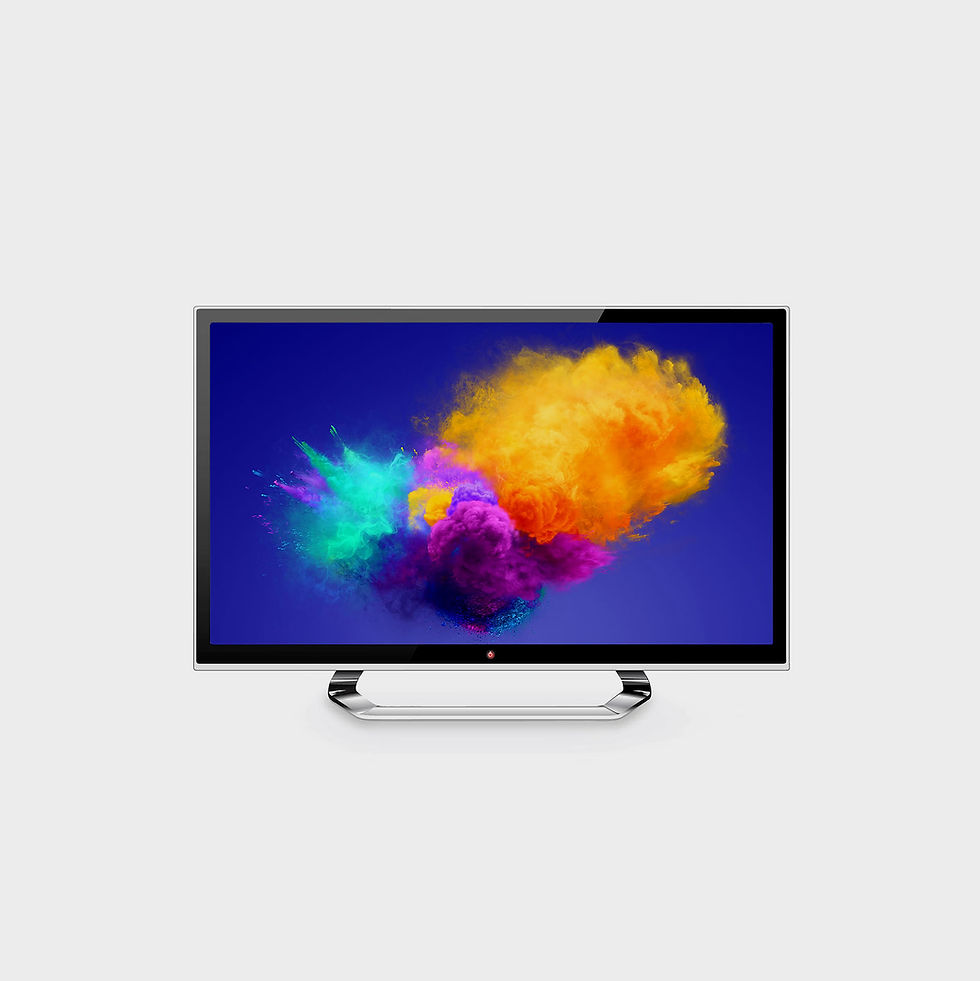
RGB (Screen Only)
4. Use CMYK Colour Mode
Screens use light (RGB) to make colors, while printers use ink (CMYK). To avoid dull or shifted colors, always set your design software to CMYK before you start.
- RGB: Red, Green, Blue (Digital)
- CMYK: Cyan, Magenta, Yellow, Key/Black (Print)
CMYK (For Printing)


Low Res
72dpi - 150dpi
Good for large format printing, as you're viewing further away
5. High Resolution Images
To keep your prints looking fresh and sharp, always use high resolution images. Low res files look fuzzy and pixelated when printed.

High Res
300dpi
Perfect for everything else
6. Outline Your Fonts
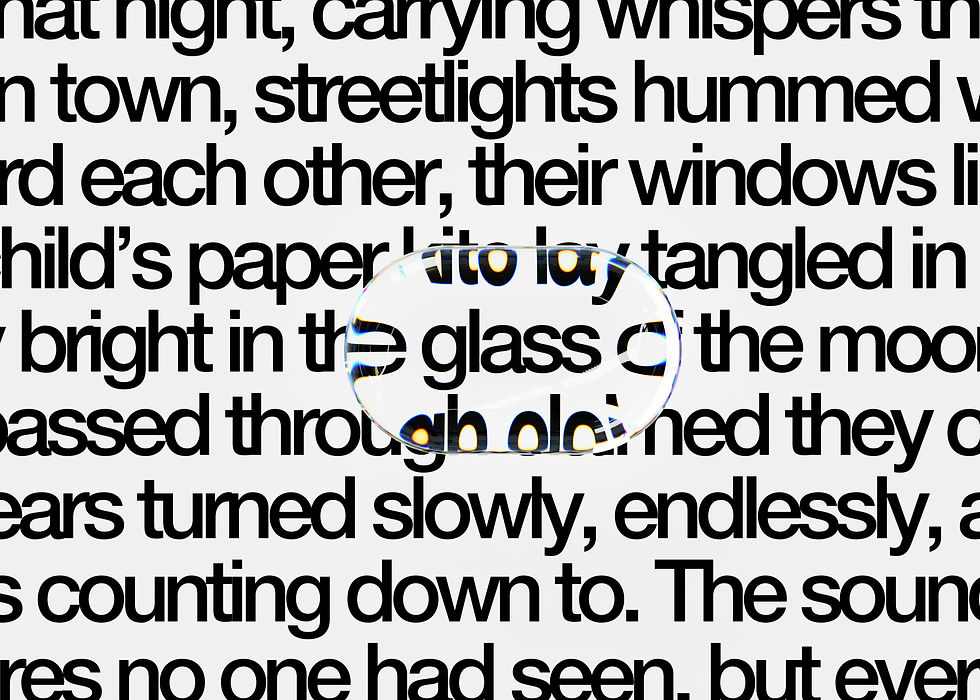
To make sure your text looks exactly how you designed it, you need to 'embed' or 'outline' your fonts. This turns text into shapes so we don't need to own the font to print it perfectly.
01
Select All Text
Highlight all the text in your design software (Ctrl/Cmd + A).
02
Create Outlines
Right-click and select 'Create Outlines' or 'Convert to Curves'.
From Start to Finish


Quote
Send over all your needs
Place Order
Once payment is received, we can get started!
Create Proof
Can take up to 2 hours to create
Approve
You have until 5pm to approve your proof
Production will start after approval
Delivery
Tracking info will be sent to you
Share your experience
Review